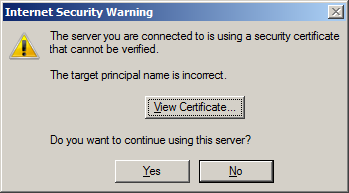
If Outlook warns that a server certificate cannot be verified, do not solve the warning by turning encryption off or accepting an unknown certificate. The warning deserves investigation.
Record the problem
Note the exact message, the account affected and whether sending or receiving fails. Do not publish your login details. Check that you are on the expected network and have completed any legitimate Wi-Fi sign-in.
Check the configured server
Ask your mail provider or administrator to confirm the correct incoming and outgoing server names and the required security settings. A mismatch between the configured name and the certificate can cause a warning, but guessing a hostname from the certificate is not a safe configuration method.
Have the certificate checked
The provider may need to correct an expired certificate, incomplete setup or network issue. An organisation using its own certificate authority may have a managed trust process; follow your administrator’s verified instructions rather than installing an unfamiliar certificate yourself.
Why the old workaround was removed
The previous version suggested switching SSL off and offered guessed server names. That can remove a protection instead of fixing the cause. Keep a record of your existing settings and obtain the correct configuration before making changes.
Seven Creative can discuss email security and delivery configuration. Explain the symptom through the contact page; do not send passwords in the message.
Sources and further reading
Guidance checked 26 October 2026: Microsoft’s certificate-error guidance.
Illustrations