Outlook signatures are not stored in one universal place. First identify whether you use classic Outlook for Windows, new Outlook or Outlook on the web. Copying a Windows folder is not a reliable way to move signatures between all of them.
Classic Outlook for Windows
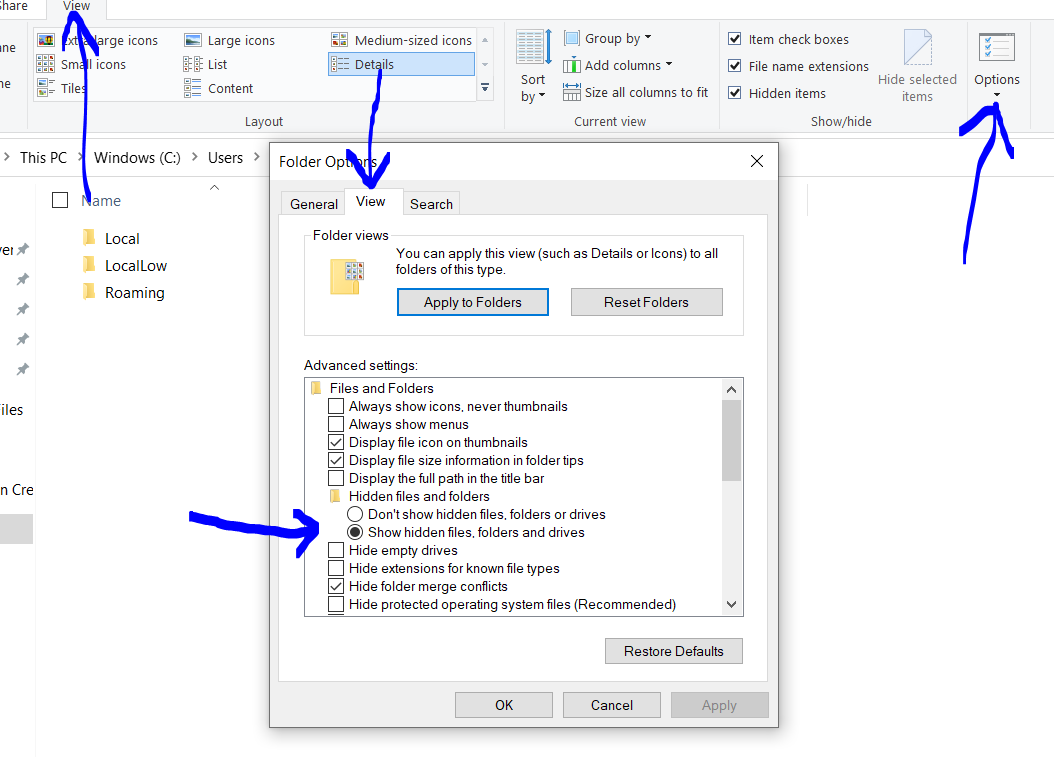
For local signature files, open File Explorer, enter %APPDATA%\Microsoft\Signatures in the address bar and press Enter. Close Outlook before making a backup copy. Keep the associated folders as well as the HTML, text and rich-text files, because a signature can depend on image assets.
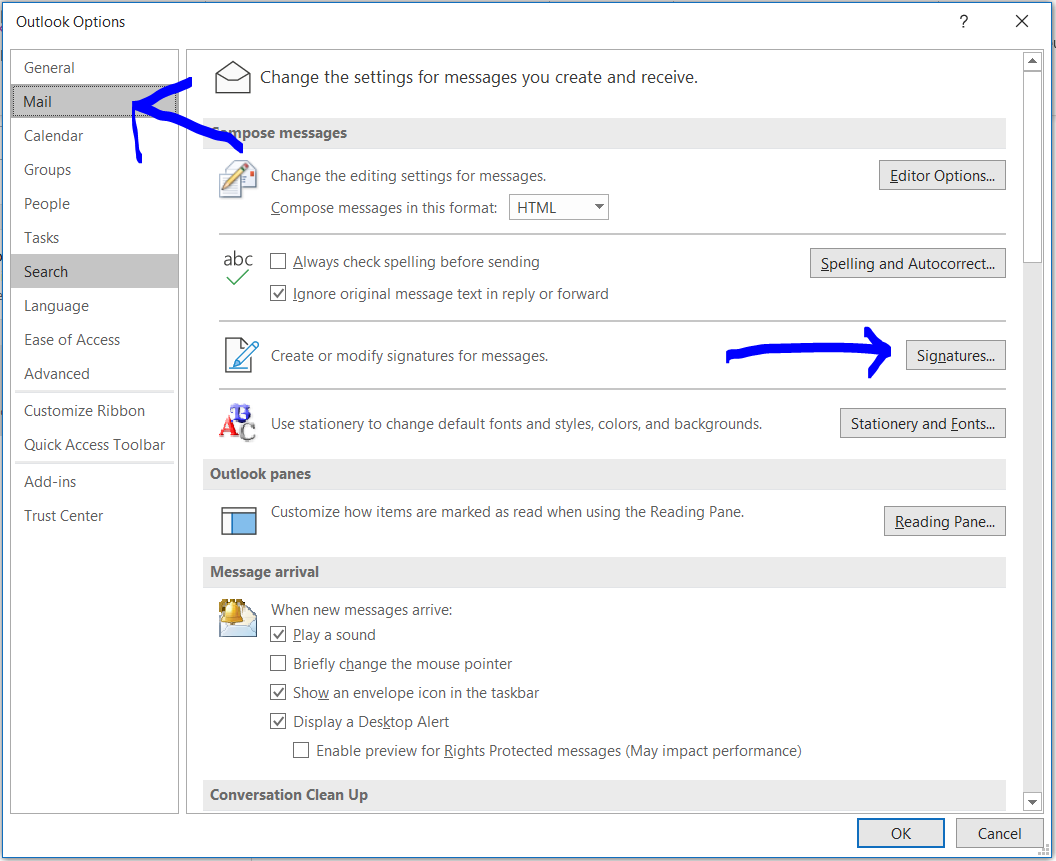
You can normally edit a signature from File → Options → Mail → Signatures. Organisation-managed and roaming signature arrangements may behave differently; the presence of local files is not proof that copying them will configure another account.
New Outlook and Outlook on the web
Use the signature settings in the application rather than looking for the classic Windows folder. In new Outlook, Microsoft currently documents Settings → Accounts → Signatures. Select the correct account and check which signature is used for new messages and replies.
Moving computers or rebuilding a signature
Keep a private backup before changing anything. Test a new message and a reply, including image display and links. If the old signature relied on files from another computer, rebuild those references rather than assuming they will travel with the text.
The screenshots below show an earlier classic Outlook interface. They remain examples for that version, not a walkthrough for new Outlook. If your organisation manages signatures centrally, ask its administrator before replacing local files.
For account and client questions, see our Microsoft 365 support and management service.
Sources and further reading
Guidance checked 26 October 2026: Microsoft’s Outlook signature guidance.
Earlier interface examples